Managing Enquiries
To ensure enquiries are acknowledged and action taken, you have the ability to confirm, decline or edit each. We recommend that you should check Events regularly to ensure you keep on top of your potential bookings.
Enquiry Management Topics
Enquiry Timeslots
Enquiry availability is defined within your timeslots setup. You are able to allow enquiries or disable enquiries by timeslot, or prevent your site from taking them all together. In order to check your timeslots are configured to allow enquiries, you can find out more in the Managing Capacity topic.
Acknowledging Enquiries
New enquiries are displayed in multiple areas of the Events Host tabs. The tab we will use to demonstrate tasks and actions, will be the dedicated Enquiries tab. When selecting the Enquiries tab, all unacknowledged/ new enquiries are highlighted in grey with a red warning icon as shown:

As soon as an enquiry is opened, the highlight and the red icon are removed. This signifies to other host users that the enquiry is being dealt with. If you open an enquiry, but are not able to accept it immediately, the enquiry can be unacknowledged (Scroll to the bottom of the page within the booking and the Acknowledge button is on the right hand side) so that the highlight and the warning icon is reinstated.
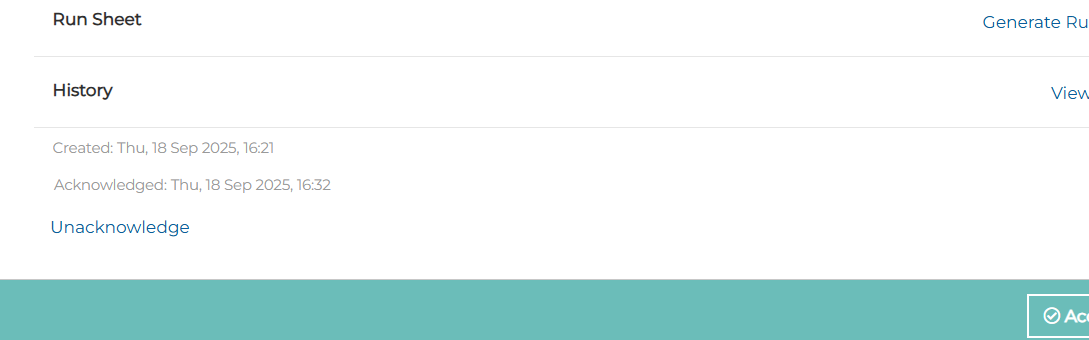
Host users can also filter enquiries by their acknowledge status.
Accepting or Rejecting Enquiries
If you open the enquiry you will see at the top of the page you have the option 'Reject' or 'Edit' the enquiry and at the bottom 'Accept Enquiry'
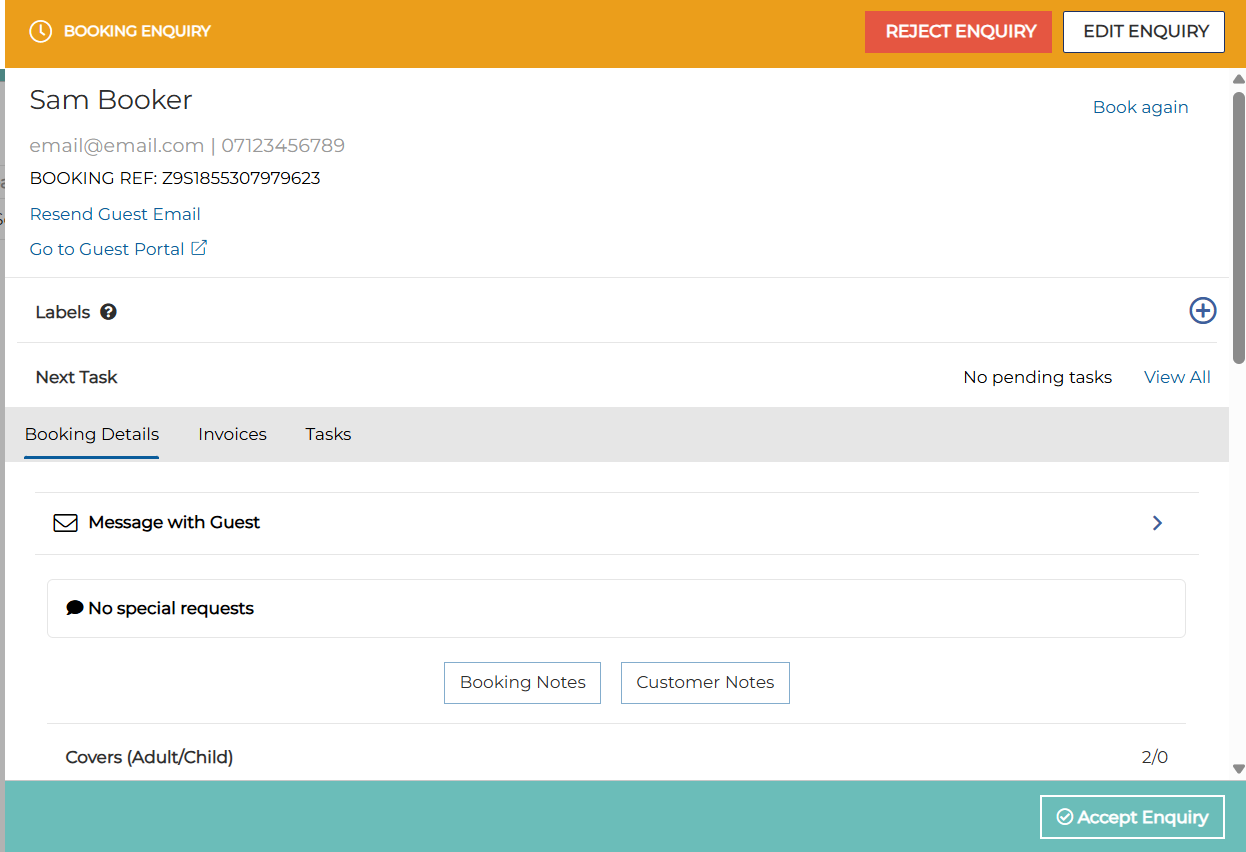
This gives you the ability to either reject the enquiry if you are unable to accommodate the booking or edit it to change the requirements if the customer is flexible.
The reject option will send the customer a Rejected Enquiry email so they know their enquiry has not been converted into a booking.
If you able to take the enquiry and the details are all OK - at the bottom of the enquiry you will see the Accept Enquiry option. If you select this then the customer will be sent a Booking created email and any booking rules that apply to the occasion or menu will be applied at that point such as deposits, pre-order etc.
Email Communications
When you enable your site to take enquiries, we recommend you check your email templates are set up exactly how you want your guests to receive them. To find out all about the email templates available in your site setup, go to the Email templates sections.